Wiki Config
To access: Click the Wiki icon on the Admin Panel
or Access http://example.org/tiki-admin.php?page=wiki
Admin Access
To access the Administration page:
From the Admin menu, select Admin > Admin home.
Sections: Tiki Config Panel
You will see the Sections Tiki Config Panel (see Tiki Config ), as shown in the image below:
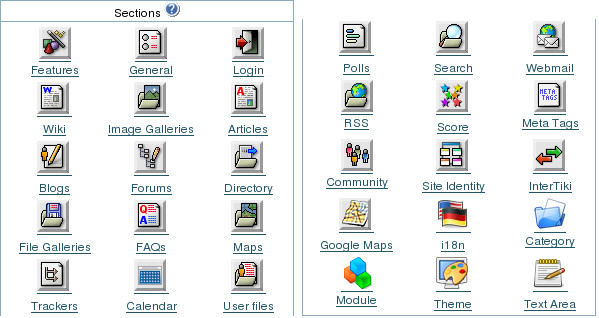
Wiki settings
From the Administration page, click the Wiki icon  . The Wiki Administration page appears:
Wiki Comments Settings
You must enable the Comments option to use this feature.
Enable the Comments option on the Features tab of the Wiki Administration page:
| Field | Description |
|---|---|
| Default Number of Comments | Enter the number of comments to show at a time. If a page contains more comments, Tiki will create NEXT/PREVIOUS links. (Default = 10) |
| Comments Default Ordering | Specify how the comments are shown: Points: Comments with the highest point value are shown first. (Default) Newest First: The newest comments are shown first. Oldest First: The oldest comments are shown first. |
| List Displayed by Default | Specify if the comments are automatically displayed on wiki pages. If not enabled, users will have to click a Comments link before viewing the comments. This option was introduced in Tiki 2.0. |
| Allow comments per page | From Tiki 4.1 once the Comments option has been enabled you can then allow/disallow Comments on a per page basis from the Tools section of the Edit screens: Disable (the Default) leaves the Comment option as standard ie Comments can be added to any Wiki page. Enable (default On) allows each page to have Comments allowed or disallowed on a per page basis where the default for every page is set to On ie a Comment is allowed. Enable (default Off) allows each page to have Comments allowed or disallowed on a per page basis where the default for every page is set to Off ie a Comment is not allowed. |
Enter your options and click Change Settings. Note that when comments are displayed on a wiki pages, users have the option to override these defaults and sort the comments another way.
Wiki Attachments
A Wiki page can have attached files (Wiki Attachments). You can store attachments in the database or a file directory. The maximum size of an attachment is specified by your webserver's PHP.INI upload_max_filesize setting. By default, the maximum upload size is 2MB.
The directory path can be absolute or relative to the Tiki directory.
Enable the Attachments option on the Features tab of the Wiki Administration page:
| Field | Description |
|---|---|
| Wiki Attachements | Specify if files can be attached to wiki pages. Users with permission will see an Attachments button on wiki pages. |
| Use Database to Store Files | If selected, files that are attached to wiki pages will be converted to BLOBs and stored in the Tiki database in the tiki_wiki_attachments table. |
| Use a Directory to Store Files | If selected, files that are attached to wiki pages will be stored in the specified directory. The directory can be an absolute path (such as http://www.foo.bar/attachments/_) or relative to the Tiki installation directory (such as attachements/).  Note: The trailing slash (/) in the path is mandatory — it must be included in the path.
 |
| List displayed by default | Specify if the comments are automatically displayed on wiki pages. If not enabled, users will have to click an Attachments button before viewing or adding attachments. This option was introduced in Tiki 2.0. |
| Wiki Attachments | This area lists all current attachments. You can use this area to change an attachments storage location to either Database to File. This field is in Tiki 1.9 only |
Enter your options and click Change Preferences.
In the Wiki Administration area, click Manage attachments preferences.
Use the Wiki Attachments page to manage the existing attachments.
The Wiki Attachments page appears. This pages lists all current attachments.
- To change a single attachment from file to database (or reverse), click Change for that attachments.
- To change all attachments from file to database (or revers), click Change all to DB (or Change all to File).
Export Wiki Pages
The Export link can be used to export all your Wiki pages to a PHPWiki compatible format. Then you can import pages if you want using the Import PHPWiki Dump link in the Admin menu. Each page is exported to a file where all the versions of the page are stored in MIME format.
- Click on the link to export wiki pages
Enable the Export option on the Features tab of the Wiki Administration page:
You must enable the Export option to use this feature.
Remove unused pictures
This link can be used to remove all the pictures that are stored in the Wiki pictures directory (img/wiki_up) but are not referenced in any Wiki page.
- Click on the link to remove unused pictures
Enable the Pictures option on the Features tab of the Wiki Administration page:
Wiki Home Page
You can select any wiki page to be the "home" page of your Wiki. This page will be shown from the Wiki > Wiki Home menu option.

Enter the name of the wiki page and click Set. If the page does not exist, Tikiwiki will create it for you.
Note: To use this wiki page as the "home" page for your entire site, you must select Wiki as the Home Page on the General Admin page.
Wiki Discussion
Tikiwiki can automatically create a forum thread for each wiki page. The forum thread will be named the same as the Wiki page. You can specify in which forum the thread is created. This allows users to create an open discourse about pages using the public forums.
You must enable the Forums feature to use this option.
Enable the Discuss pages on forms option on the Features tab of the Wiki Administration page:
| Field | Description |
|---|---|
| Discuss pages on forums | Enabling the option will add a Discuss button on every Wiki page that links to a forum thread dedicated to discussion the particular page. This option is available only when the Forums feature is enabled. |
| Forum | Select the forum to be used for the page's thread (discussion). The forum must already be created. |
| Create forum | This button appears only if there are no existing forums. |
The Discuss feature is similar to the Comments feature. Although both can be used at the same time, it may be best to select only one.
Wiki Page Staging and Approval
This is a feature to allow wiki pages to be staged before they are approved. This is useful, for example, to have a staging area where open contributions are welcome, but at the same time to have an official knowledge base that is extremely stable, hence needing some kind of approval before page changes are shown there.
For more information about configuring this feature, see Wiki Page Staging and Approval
Wiki features
This section can be used to enable/disable specific Wiki features.
Sandbox
The Sandbox page allows users to practice their Wiki page editing skills. The Sandbox is a special page where everybody has write permission and no history is saved.
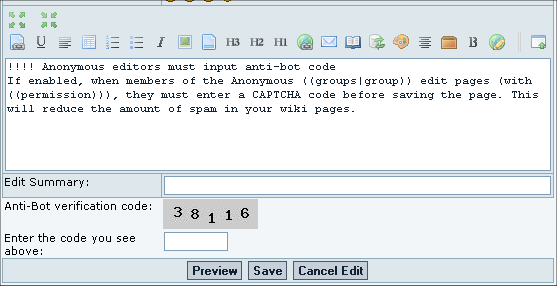
Anonymous editors must input anti-bot code
If enabled, when members of the Anonymous group edit pages (with permission), they must enter a CAPTCHA code before saving the page. This will reduce the amount of spam in your wiki pages.
Last Changes
If enabled, the Last changes option will be available from the Wiki menu. Users (with permission) will be able to list the last (most recent) changes to the Wiki.
Dump
If enabled, dumps can be created and saved.
Export
If enabled, users can {ALINK(aname=Export_Wiki_Pages}export{ALINK} individual pages and structure pages content as a file (requires tiki_p_admin_wiki permission).
Rating
This allows you to add a poll from polls feature to any wiki page. The poll is unique to the page, created from a "poll template" which is created in the Polls feature: set a poll's 'active' drop-down to "template". You may have to adjust your groups permissions for tiki_p_wiki_view_ratings and tiki_p_wiki_vote_ratings.
History
If enabled, users (with permission) can see the history of each Wiki page.
View Source
If enabled users (with permission) can see the Wiki syntax of the Wiki page.
List Pages
If enabled users (with permission) can see the list of Wiki pages--like a directory of Wiki pages. Use the Wiki Page List Configuration area to select the specific information to display.
Backlinks
Allows users to view a list of pages, called backlinks, that link to the current page.
Similar
If enabled, users can see a listing of pages named similarly to the current page.
Note: Prior to release 1.9.11, this option was called Like Pages.
Rankings
If enabled, users can see several charts or rankings about the Wiki.
Multiprint
If enabled a section is provided where a user can select several Wiki pages and then view them in a printer-friendly version. This can be used to print multiple pages.
PDF generation
If enabled Wiki pages can be converted to PDF format for printing, archiving, or other purposes. There are known bugs in the PDF generation.
This option was removed in Tiki 2.0
Comments
If enabled, Wiki pages can have comments. This feature overlaps the Wiki Discussion__ feature, you can read the note about Wiki pages comments/discussion at the bottom of this page.
See Page Comments for more information.
Use templates
If enabled, users editing a Wiki page can select a template for the page. A template is a pre-defined content for a Wiki page. See Content Templates to learn how to create templates for wiki pages.
Pictures
If enabled users can quickly add images (pictures) to a Wiki page by simply uploading the picture when editing a page. The picture will be stored in img/wiki_up using the name of the picture as an ID.
Use the Remove Unused Pictures to remove any pictures that have been uploaded but are no longer used in a wiki page.
Cache Wiki pages
If enabled then Wiki pages can be cached, so the page is remembered after being generated and the Tiki engine will not have to parse the page content to display it. After the indicated time passes or if the page is changed, the cache is invalidated. In versions >= 2.1, the cache is only used for anonymous visitors, so user permissions do not affect the cache.
Individual cache
If enabled then cache times can be set for each individual page, overriding the global cache time setting.
Users can save to notepad
If enabled and if the user's notepad feature is enabled and if the user is logged a save icon will be shown when viewing a page, letting the user save the page to his or her personal notepad.
Users can lock pages
If enabled then users with permission to lock pages can lock pages and only the user who locked a page or admin can unlock it.
Use WikiWords
If enabled then words using the Wiki naming convention of Smashed words will automatically become links. WikiWords start with capital letters and include capitals in the middle of the word (example: ThisIsAWikiWord).
 Note: In Tiki 1.9, this option was enabled, by default, for new installations. Starting with 2.0, this option is no longer enabled, by default, for new installations.
Accept dashes and underscore in WikiWords
If enabled, Tikiwiki will allow WikiWords to include dashes and underscores.
You must enable the Use WikiWords option to use this feature.
Link plural WikiWords to their singluar forms
If enabled, Tikiwiki will automatically link (combine) singluar and pluarl WikiWords. For example, the WikiWords MyWord and MyWords will link to the same wiki page: MyWord.
You must enable the Use WikiWords option to use this feature.
User pages
If enabled, each user will have a personal wiki page which only (s)he can edit. The prefix is configurable.
Page creators are admin of their pages
If enabled then users who create a page are also in control of that page. They have administrators rights over it.
Table syntax
This selects which Wiki syntax to use for cretaing rows within tables. Select either: || or \n (line break).
|
Using || for new rows Copy to clipboard
|
Using \n for new rows Copy to clipboard
|
Use Wiki paragraph formatting
If this is enabled, adjacent lines of text will be formatted as paragraphs. Paragraphs are separated by blank lines or Wiki commands.
But still create line breaks within paragraphs
If enabled (and if the Use Wiki paragraph formatting option is enabled), Tikiwiki will use the paragraph formatting options, but paragraphs will remain within the same element, but will contain spacing.
Automonospaced text
If this is enabled, the Tiki code lines starting with at least one space are interpreted and rendered with monospaced font. Generally if you have occasional users this can get them puzzled and wondering what's happening.
As an alternative, you can use the monospace wiki syntax (-+monospace+-) to create monospaced font.
Uses Slideshow
If enabled users can generate slideshows from structures.
- Push the button, when finished to set preferences.
Make structure from page
If enabled, a Make Structure button will be added to Wiki pages. Using this button will create a new structure with the current Wiki page automatically added as the "head" of the structure. See Structure Admin for more information.
This feature was added in Tiki 2.0.
Categorize structure pages together
Allows categories to be applied to structures on creation.
This feature was added in Tiki 2.0.
Create Webhelp from structure
If enabled, the Structure Admin page will include a new option for generating WebHelp (an self-contained, HTML "help" version of the Wiki structure). Use this option to distribute Wiki pages to offline users in a usable format.
Use external link icons
If enabled, Tikiwiki will automatically add the external link icon to all external links (created with the [link] wiki syntax).
By default, Tikiwiki uses img/icons/external_link.gif ( ) as the icon.
UserPage prefix:
Enter a unique prefix to add to each wiki page to idenfity all User Pages.
You must enable the User's Page option to use this feature.
-> Note: as of Tiki 6.1 (and maybe others) the prefix cannot be blank and you must include a : (colon) as the last character, or all users lose the ability to create or edit pages.
Page creators are admin of their pages:
Allows page creators to assign permissions or remove pages they create.
Import HTML:
Import Page:
Protect email against spam:
Masks all email addresses in a "mailto:" link.
When viewing a page, if it doesn't exist and has one like page, automatic redirection to this like page:
Specifically designed to reduce parallel pages will redirect someone trying to create "trains" to "train".
Print Page:
When activated this feature shows a small printer icon which when clicked allows a viewer to print just the content of a wiki page (without header info and sidebar tools, etc.)
Admin:
- Wiki (Features tab) controls printing of wiki pages.
- There is a separate option for articles on Admin: Articles (General tab)
Show page version:
Choose where the page break icons are displayed when page break syntax is used:
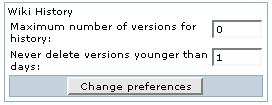
Wiki History
This panel is to control the deletion of old versions of Wiki pages.
Maximum number of versions for historydetermines how many versions of a Wiki page will be kept before older versions are deleted. This affects the level of undo that is possible, but also how much of the page's evolution you can see. This can be useful in a highly collaborative environment where it seems that some elements don't make sense anymore.
Never delete versions younger than days can be used as a basic way to avoid vandals or to make sure that editors can review all the changes done to a page if many edits were done in a short time.
- Push the button to set preferences.
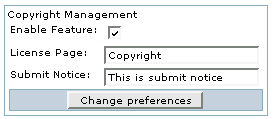
Copyright
You can use or not the Copyright to specify a content license under which all Wiki pages are published when submitted. License Page indicates the Wiki page containing the default license of your Wiki. It won't be created automatically. Submit Notice is seen when editing a Wiki page to indicate what content is suitable considering the license.
|
|
Wiki Watch
|
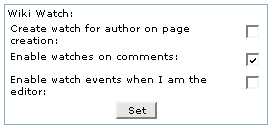
The two first options automatize the monitoring of Wiki pages. Create watch for author on page creation automatically makes a page creator monitor the page he created. Enable watches on comments notifies monitorers of new comments, as for a new edit. Used less often, Enable watch events when I am the editor cancels the normal behavior which assumes that editors do not want to be notified themselves when they modify a page they are monitoring.
|
|
General Preferences
Home page
Landing page used for wiki when no page is specified. The page will be created if it does not exist.
Use page description
If enabled a description can be entered when editing a page and descriptions will be displayed below the page name when viewing a page.
Display page name as page title
Display the page name at the top of each page as page title. If not enabled, the page content should be structured to contain a header. If disabled no title will be displayed (and it will be hard to know what page you are editing!).
Display page name above page
Page ID
If enabled, the page's unique numeric ID will be displayed when viewing the page.
Page version
Display the page version information when viewing the page. As of Tiki 5.0, this information is only displayed when the List authors preference is enabled.
List authors
Changes the list format used to display the authors of the page. Listing options include last modification date/time and page version (if the Page version preference is enabled).
Show/hide heading icon displayed before the heading:
For use with the !!- or !!+ syntax. Checking will display the showhide switch at the left of the heading, otherwise it displays below.
Page action bar position
Page navigation bar position
Page top line location
Page buttons
Encourage contributions to wiki pages by anonymous
Wiki Link Format
This control can be used to control recognition of Wiki links using the two parenthesis Wiki link syntax ((page name)).
- english allows only letters, numbers, space, underscore, dash, period and semicolon (but space, dash, period and semicolon not allowed as either the first or last characters).
- latin adds accented characters.
- complete allows anything at all but is not guaranteed to be bug-free or secure.
Note that this only affects the Wiki syntax ((page name)). It does not affect recognition of the Wiki naming convention of Smashed words starting with capital letters (example: ThisIsSomePage).
- Push the button to set the format

Spellchecking
If enabled the spellchecker can be used for Wiki pages. See Spellcheck for details on installing the language library (a separate download).
Content templates
Warn on edit
If enabled then when a user is editing a page the edit button will be colored red and the name of the user editing the page will be displayed as a tooltip. If the user saves or cancels his or her edit or if the indicated amount of time passes the edit button will be displayed normally. This feature is useful to prevent collisions when editing pages.
Edit idle timeout
Select the amount of time (in minutes) after which a user's edit session will expire. If the user does not save or preview their work, it will be lost. Tikiwiki will display a "countdown time" in the user's browser and display an alert when only a minute remains.
Undo
If enabled, the user who last edited a page can undo his or her edit.
Save Draft
This option was introduced in Tiki 2.0
Footnotes
If enabled logged users can write personal footnotes when editing a page. The footnotes will be displayed only to the user who edited them immediately below the Wiki page. This can be used as a good way to let users make personal notes and observations about pages.
Allow HTML
Warn before page lock timeout
Edit section
Toggle display of section and plugin edit icons
Minor Edits
Users with the right permission (tiki_p_minor) can save a Wiki page change as a minor edit. Minor edits do not generate notifications for users who are monitoring the page.
In Tiki 2.0, use the Watch Minor option in the {ALINK(aname=Wiki_Watch)} area to allow notification to be generated for minor edits.
Force and limit categorization to within subtree of:
Specify if all wiki pages must be categoried. This will require the use to select a category for the wiki page before saving. Seelct from the following options:
- None: Categorization is not required.
- All: User can select any category.
- specific category: User must select from the specified category (or its children).
You must enable the Category feature and create at least one category to use this option.
This feature was added in Tiki 2.0.
Log bytes changes (+/-) in action logs
;)