This feature allows you to follow what a user is doing on a user basis or a category basis.
For instance, you want to know the time a user was active or how many actions (update, view, ... ) have been done by a user or by a category during a period of time.
Admins can see reports of all action logs. Each user can see the report of his/her own actions through a section which can be accessed through the last icon in the following image from MyTiki: 

This is the Action log icon, which links to an url like: tiki-admin_actionlog.php?selectedUsers[]=username, being username the name of that user.
Configuration
This feature can be activated in the Admin -> Features panel.
The actions that can be recorded can be selected in the Admin -> Action Log panel. The actions that can be viewed at report time can be selected also in the Admin -> Action Log panel, for an admin, or in My Tiki -> Action log icon. For instance,
Setting for recording and viewing actions (admin)
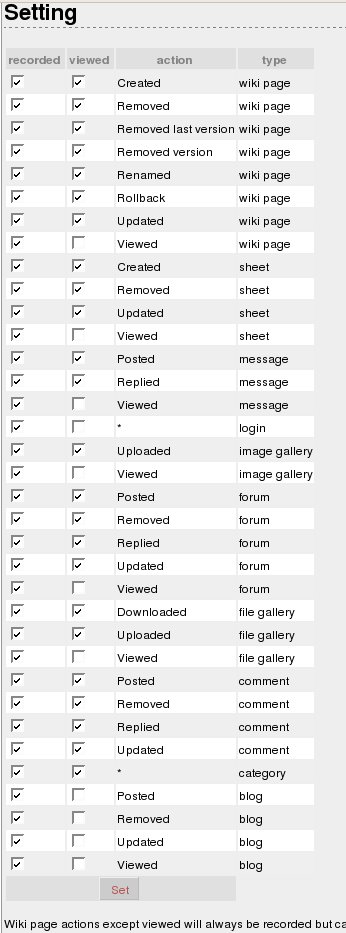
Some actions are always recorded as they are needed in other functions (the logging/loggout time and the wiki page updated) . Some others can be recorded by activating them individually through this panel, plus it can be chosen which ones are needed for each report, regardless that there may be be more actions being logged but not chosen to be displayed in the report.
Since Tiki 15.1, creating, modifiying or deleting calendar events can also be recorded and displayed through the Action log.
Setting for viewing actions (any user)
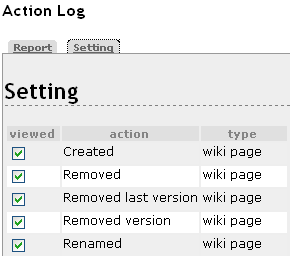
Etc...
Adding the permission to the group/s of interest
An admin has to grant a group of users the permission to see action logs, as it should be done for any other permission (see Permissions). This permission is called tiki_p_view_actionlog.
Choose if user's activity log has to be public or private
Another setting related to contributions is at Admin -> Login ("Displays user's contribution in the user information page:"). If enabled, a user will be able to see other user's activity log, including his/her contributions on the report. If not, only each owns logs will be reported, except for admin, which will be able to see the log reports of all users, groups, etc.
Report and Statistics
An admin can obtain a report and some statistics on a user/s, group/s and category basis.
Any user can obtain a report and some statistics about his/her activity on a category basis.
In the Admin -> Action Log panel for an admin, or in My Tiki -> Action log for any user, the settings and filters can be selected.
Reporting filters
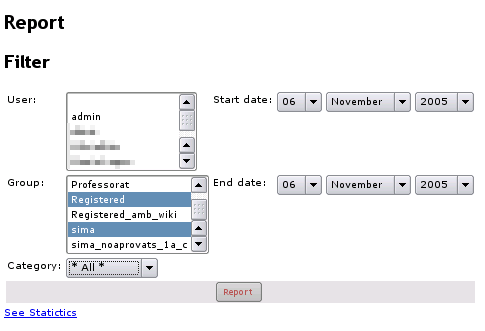
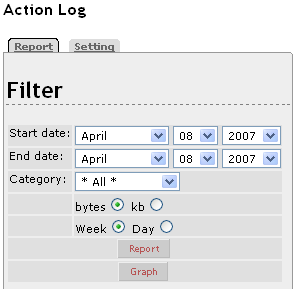
Note that when contribution feature is NOT enabled, the "Graph" button is not shown.
Two actions have special meanings. The category action will record at the same time the action on a object is done the current category(ies) the object has. And the logging action that is only a switch to display or not the login statistics.
Notice: if you change the configuration, the previous actions will not be changed. A new selected action (except for those that are always saved) will not show this type of action that have occurred in the past. If you take away an action, the recording and/or display will be updated accordingly from then onwards.
Report list of actions
Individual actions are listed:
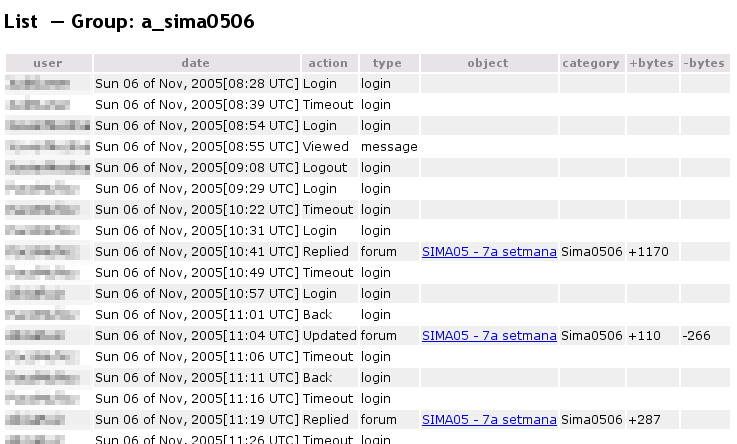
If feature "Contribution" is enabled, a new column called "Contributions" is added to the list of actions reported, or exported.
Report statistics
And some basic statistics are included below:

Report Contributions
If feature "Contribution" was enabled, a new table reporting the evolution in time (weeks or days) of contributions is added below:
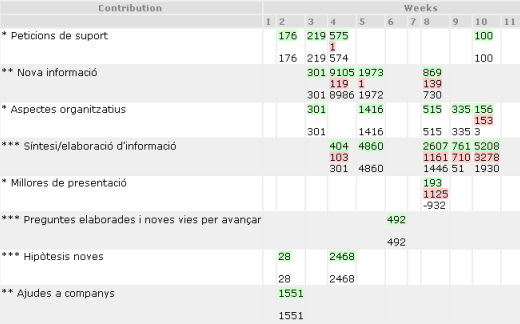
Additions are shown in green background, deletions in pink, and the difference is shown without any special background color. Units are either bytes or kb, specified previously through the reporting filters described above, as well as start and end date, and if columns are days or weeks.
Moreover, contributions can be displayed as graphs (several graphs are produced), and they can be also saved in an image gallery for later re-use in reports through wiki pages, etc.
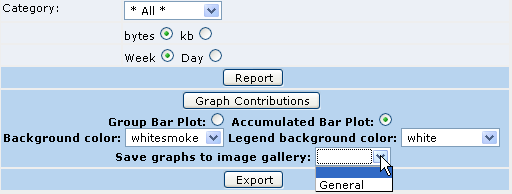
This will produce several graphs in the following screen (and also in the image gallery, if selected), like the ones shown in this figure:
See Contribution for more information on this feature and the type of graphs generated.
;)