Introduction
You don't have to be a web developer or programmer to install Tiki. Tiki has an easy-to-use, wizard-based installer which will do most of the work for you. The rest can be completed from your web host's control panel. You can also use 1-click installers.
If you are a complete novice (or are just not into DIY = do it yourself ) consider using Tiki friendly hosts. Many will complete your Tiki setup you free of charge.
If you are a web developer or programmer, command line installation of Tiki is also supported.
Before you begin
Before installing Tiki, read the Requirements and Setup information and use the Server Check tool. Proper planning can ensure a worry-free installation. If you need a web host for your Tiki, refer to the list of Tiki Friendly Hosts.
These instructions are intentionally generic, and should apply to most shared host installations. See Installation Guides for instructions for specific combination of operating system and web servers. (Full disclosure: the specific installation guides aren't updated as often as the general instructions so could be out of date. Please use the project's mailing lists, forums, etc. to get more information if necessary.)
1.1. Prerequisites
This guide assumes you have:
- FTP or SSH (shell) access to, or cPanel access at, a web server (such as Apache) with the required version of PHP for the Tiki release to be installed.
- Access to a MySQL database (should be provided by your web host).
Step-by-step installation
1.1. Create the database
Tiki requires a MySQL database.
Many hosts offer a point & click interface to create databases and database users. For example, if your web host has cPanel you probably can see phpMyAdmin in the main menu or a the section labeled Databases.
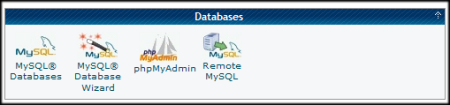
Creating a database (and a database user) is a very simple operation. Essentially you will create a blank (empty) database that the Tiki installer will later populate with the correct tables and data.
1.1.1. The three steps of database setup
- Create a database.
- The database name can be anything but should be kept simple — you can use tiki, and avoid using an underscore character in the name. Depending on your web host, your full database in phpMyAdmin may be listed as accountname_tiki.
Note: By default, Tiki uses UTF-8 for database encoding. Select "utf8" in the "collation" drop-down box in phpMyAdmin (or similar). Tiki moved toutf8mb4since Tiki19, so a collation such asutf8mb4_unicode_cishould be selected, in the field shown in the following image:
Click to expand
If you select a different encoding method, you may need to manually update your ../db/local.php file.
Tip: If you plan on having multiple Tiki installations, don't use tiki as the database name. - Be sure to record the database name; you will need it later.
- The database name can be anything but should be kept simple — you can use tiki, and avoid using an underscore character in the name. Depending on your web host, your full database in phpMyAdmin may be listed as accountname_tiki.
- Create a database user (with password).
- Again, simple is best for the database username. In fact, you can use the same name that you selected for the database (in step 1).
- Select a strong password. You can easily recover your database username and password if necessary (by reviewing the
../db/local.phpfile in your Tiki directory. - Be sure to record the username and password. You will need it later.
- Assign all database permissions to the database user that you created (in step 2).
Following these steps, a database is created that is ready to use, as well a a database user (and password) with the necessary permissions.
1.2. Two ways to get the Tiki files
1.2.1. Check out the files from the online code development repository
This method requires (a) a server with shell (command line) access and (b) the Git command line tool already installed on your server.
Example for a fresh checkout (recommended also for major upgrades)
Method 1
Cloning to a new folder (that you will specify)
$ git clone https://gitlab.com/tikiwiki/tiki.git mynewfolder
Method 2
Cloning to the current folder (when you created the intended tikiroot already and changed into this directory prior to the checkout):
$ git clone https://gitlab.com/tikiwiki/tiki.git .
Ressources
If you are new to Git and you want to use Git to either deploy and manage a live website or you are a developer moving to Git from another version control system (vcs), you might want to find a course or a book.
The entire Pro Git book, written by Scott Chacon and Ben Straub and published by Apress, is available here. All content is licensed under the Creative Commons Attribution Non Commercial Share Alike 3.0 license. Print versions of the book are available on Amazon.com.
See also: A short history of Git
1.2.1.1. Troubleshooting
[+]1.2.2. Download a release package
Alternatively, you can download a package of all the files, including external library files, of any supported version of Tiki to your local computer from http://tiki.org/download.
The full Tiki archive file download is 25 to 95MB depending on the version and compression format (zip, bz2, etc.).
1.2.2.1. Upload to your web host with cPanel's file manager
If cPanel (a feature commonly offered by shared hosting providers) is available on the web host, you can upload Tiki's zipped package as one file without first extracting the files. Use cPanel's file manager to upload the zipped archive and extract the files after the upload is complete. The files can be selected and moved to another directory in one action if necessary. If cPanel is available, this is a safer and faster method than uploading multiple files.
1.2.2.2. Unzip and upload to your web host with FTP or similar
If your web host doesn't have cPanel, after downloading the Tiki archive file, decompress (unzip) the file to your local PC.
Use FTP (or SCP, SFTP, Rsync, SSH, etc) to connect to your web host.
Once connected, find your web directory. It is often called www or public_html.
Note: This directory name may vary, depending on your web host.
1.2.2.2.1. Example 1: Upload all the Tiki files from your PC to your web host.
- If you upload the Tiki files to the root of your web directory, Tiki will be accessible directly from the URL: http://example.org
- If you have installed (or plan to install) other applications on your web host, you may consider putting Tiki in its own subdirectory (for example: http://example.org/tiki/). Keep in mind that this might mean that you will have to manually edit the file .htaccess to activate the Tiki subdirectory (for example this "RewriteRule ^(.+)$ /tiki-index.php?page=$1 [QSA,L]" might need to become this "RewriteRule ^(.+)$ /tiki/tiki-index.php?page=$1 [QSA,L]")
1.2.2.2.2. Example 2: Upload using lftp
lftp -u username ftp.example.com
lcd /path/to/local/tiki
cd /path/to/web/tiki
set ftp:ssl-allow no
mirror -R ./
An ftp testing upload session to an external web host needed approximately two hours, and the limitation was the provider's setting. The local internet connection was not saturated.
1.3. Install Tiki
1.3.1. Install a repository checkout
To complete the setup of the checked-out files, including fetching external libraries and setting permissions, run setup.sh, (in the tikiroot):
$ sh setup.sh
For more information on using setup.sh, also see the Troubleshooting section, or run sh setup.sh -h in the shell. Regarding Composer, which is only needed to fetch external libraries when Tiki is being installed from the repository, use the option "c" after starting the setup.sh script:
$ sh setup.sh
. . .
Your choice [c or f]? c
1.3.2. Install a downloaded release package
Run the Tiki installer (tiki-install.php)
Navigate in a web browser to: http://example.org/tiki-install.php (or http://example.org/tiki/tiki-install.php if you installed Tiki in a subdirectory).
The first page of the Tiki Installer appears. This installer will allow you to:
- Pick a language
- Test your server settings
- If the installer detects that some of your server settings are inadequate, it will suggest changes to comply to the Requirements.
- Enter your database host, name, username, and password.
This is the information from the database that you created earlier. You did remember to write it down, right? For non-default port number use syntax "example.com;port=3307" - Create/update the database
- Note: on osx installations, the mysql socket is a bit different. In /etc/php.ini, change all instances of /var/mysql/mysql.sock to /tmp/mysql.sock and then restart the web server
- Set some preferences, such as admin email
- Disable the install script
- And more
Complete each page of the Tiki Installer.
1.3.2.1. Security choices during installation
There are a couple of important security choices during installation as follows:
1.3.2.1.1. Secure login
When configuring general settings during installation, there is an option to "Require secure (https) login". It is recommended to select this option so that data sent between the browser and the site server is kept private.
In order to implement secure logins, in addition to selecting this option, you will need a security certificate and a dedicated IP address for your domain. These can be obtained or purchased from your web hosting company or, in the case of the security certificate, from third parties.
1.3.2.1.2. Lock the installer
In the last step of the installer, the installer is locked by default once you click the button to enter your Tiki. There is an option to elect to not lock the installer in that last step of the installation. It is highly recommended that you lock the installer for any production site. The option is provided for convenience for development sites only. The installer allows the site's database to be changed or destroyed through the browser so it is very important to keep it locked once the installation or upgrade is complete.
1.3.2.2. Alternative "Step 5" without tiki-install.php
If you are unable to complete the Tiki Installer, continue with a manual installation.
1.3.3. Log in for the first time
Log in using the login box in the right-hand column.
- Enter this information:
- user: Enter admin
- pass: Enter admin
- Click login.
1.3.4. Change the default password.
Use a strong password. You may want to log out right away, and log in again, letting your password manager record your password.
1.3.5. Congratulations!
It is recommended to create a new user and give this user admin privileges instead of regularly using the admin account. You can now explore the interface but you should check the extra steps before to get you started.
1.3.6. Configure Your Tiki
Please visit Initial Configuration, which describes the recommended next steps, or configuration for the table of contents related to configuring Tiki.
1.3.7. Add new features through post-install Profiles
You can enable a set of settings/permissions/content features in a single action, in order to provide a common feature at your Tiki site (make it multilingual, add tags, configure it as a collaborative environment, etc.) with a just few clicks using the Profile Manager from "Admin > Profiles".
Read more about it at Profiles.
For more information on the Tiki installation process...
Related pages:
|
Installation FAQ Installation Guides - recipes, tips and detailed knowledge about specific hosting environments Migrate to Tiki Move Tiki to a new server Reinstall - to point Tiki to a new database or re-run an upgrade |
Tiki in Ten minutes - a recipe for command line installations. Fantastico Installation Using SSH (for newbies) Manual Installation MultiTiki |
;)